- Introduction
- Before you begin
- Step one: Access the HP Embedded Web Server (EWS)
- Step two: Set up Fax Archive
- Step three: Set up Fax Forwarding
- Step four: Complete the setup
Use the Fax Archive and Forwarding page to configure settings for archiving and forwarding faxes on the printer control panel.
Use the Fax Archive settings to send a copy of all incoming and outgoing faxes to an email address, a network folder, or an FTP server.
Use the Fax Forwarding settings to send a copy of all incoming and outgoing faxes to another fax number.
The fax feature must be configured on the printer to archive and forward faxes.
Connect the fax cable to the fax port on the printer and to the phone port on the wall.
Administrators need the following information before beginning the configuration process:
- •
- •
- •
SMTP server (e.g., smtp.mycompany.com)

NOTE:If you do not know the SMTP server name, SMTP port number, or authentication information, contact the e-mail/Internet service provider or system administrator for the information. SMTP server names and port names are typically found by doing an Internet search. For example, use terms like "Gmail SMTP server name" or "yahoo SMTP server name" to search.
- •
- 1.
- 2.
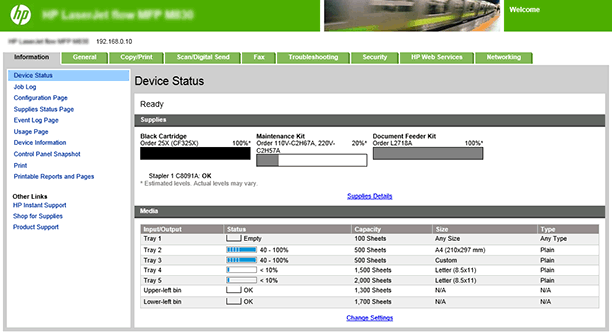
Open a Web browser, and in the address line, type the IP address or host name of the printer exactly as it displays on the printer control panel. Press the Enter key on the computer keyboard. The EWS opens.
NOTE:If the Web browser displays a message indicating that accessing the website might not be safe, select the option to continue to the website. Accessing this website will not harm the computer.
 button to display the IP address or host name.
Select and configure Fax Archiving:
Use the Fax Archive settings to send a copy of all incoming and outgoing faxes to an email address, a network folder, or an FTP server.
- 1.
- 2.
- 3.
- 4.
Configure the Archive and print settings:
- 1.
- 2.
- 3.
Select the Archive Destination:
- •
E-mail: Select an outgoing SMTP server in the Outgoing E-mail Servers (SMTP) area, or click Add... to start the Outgoing E-mail Servers (SMTP) wizard, and add a new outgoing SMTP server.
- 1.
- 2.
On the Set the basic information necessary to connect to the server dialog, set the options to use, and then click Next.
NOTE:Some servers have problems sending or receiving emails that are larger than 5 megabytes (MB). These problems can be prevented by entering a number in Split e-mails if larger than (MB).
NOTE:In most cases, the default port number does not need to be changed.
NOTE:If you are using Google™ Gmail for email service, select the Enable SMTP SSL Protocol check box. Typically, for gmail, the SMTP address is smtp.gmail.com, port number 465, and the SSL should be enabled.
Please refer to online sources to confirm these server settings are current and valid at the time of configuration.
- 3.
On the Server Authentication Requirements dialog, select the option that describes the server’s authentication requirements:
- •
- •
NOTE:If using a signed-in user's credentials, set email to require sign in by the user on the product control panel. Deny device guest access to email by clearing the check box for email in the Device Guest column in the Sign in and Permission Policies area on the Access Control dialog of the Security tab. The icon in the check box changes from a check mark to a lock.
- 4.
- 5.
- 6.
- •
- •
- •
Configure the Archive only settings:
- 1.
- 2.
- 3.
- 4.
Select the Archive Destination (see 4 for more information):
- •
- •
- •
Use the Fax Forwarding settings to send a copy of all incoming and outgoing faxes to another fax number.
- 1.
- 2.
- 3.
On the Fax Archive and Forwarding page, review the selected settings, and then click Apply to complete the setup.